How I Built and Published My First npm Package — canvas-captcha
I always used other people's npm packages — until I decided to build and publish my own. Here's how I created a zero-dependency canvas-based CAPTCHA widget, packaged it with Rollup for ESM/CJS/UMD output, and published it to npm under my own organization scope.
For years I was on the consuming end of npm — npm install this, npm install that. At some point I started wondering: how hard is it to actually build and publish a package of my own? Turns out, not that hard at all. In this article I'll walk you through exactly what I did, step by step, so you can do the same with your own idea.
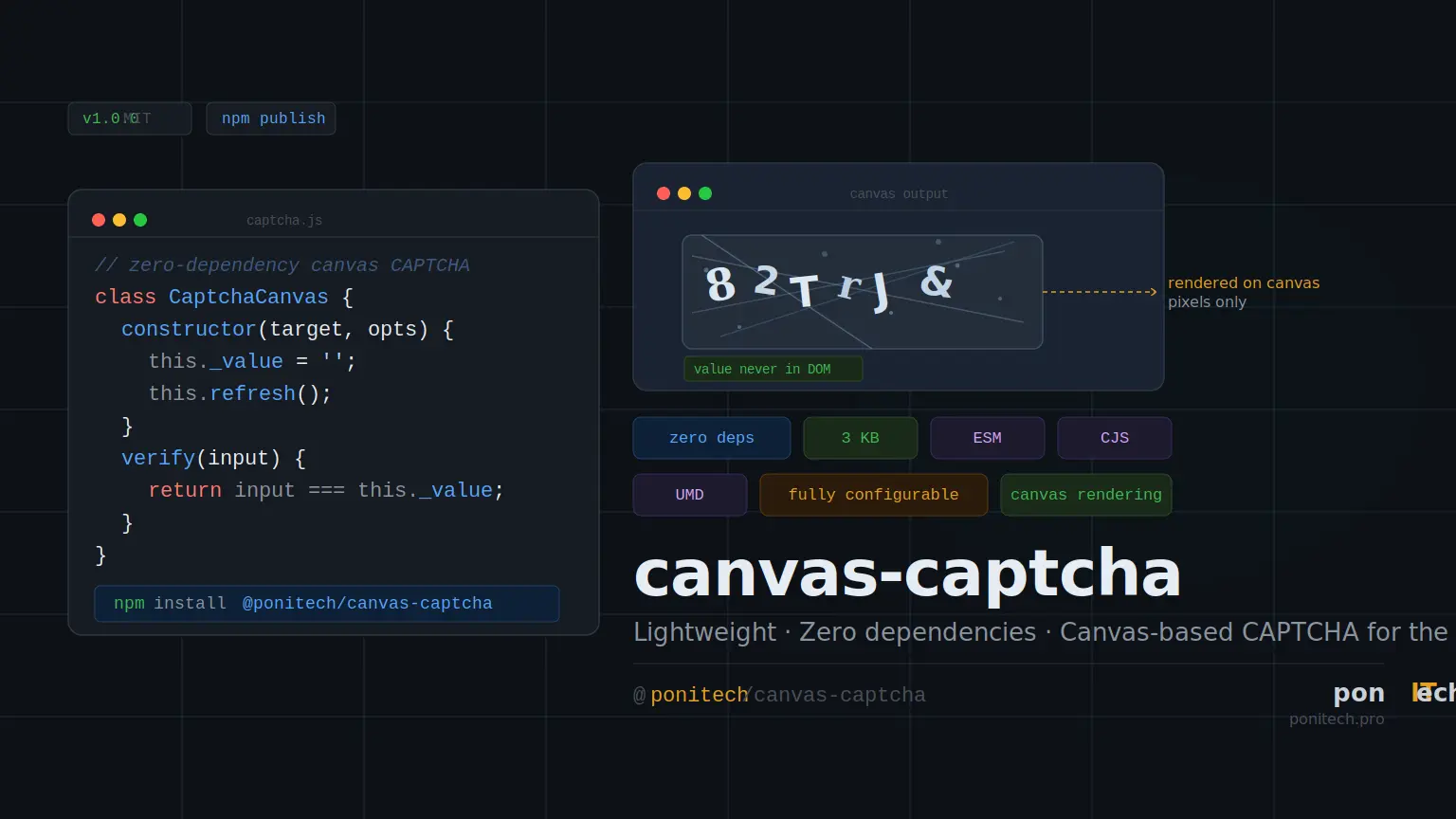
The package I built is called @ponitech/canvas-captcha — a lightweight, zero-dependency CAPTCHA widget that renders on an HTML5 Canvas instead of the DOM.
Why canvas-based CAPTCHA?
It started with a problem I noticed while reviewing some CAPTCHA code. Most lightweight implementations render the challenge text directly into a DOM text node. That means anyone — or any bot — can simply open DevTools, read the .innerHTML, and bypass the check entirely. I've seen this used to abuse contact forms on client websites.
Rendering to a <canvas> element solves this cleanly: the CAPTCHA value lives only in JavaScript memory and gets painted pixel-by-pixel onto the canvas. There is no text node to scrape. That was the core idea, and it was simple enough to package up and share.
Prerequisites
Before you start, make sure you have:
- Node.js (v18+) — nodejs.org
- An npm account — npmjs.com
- Git and a GitHub account
Step 1: Setting up the project structure
I started by creating the project folder and initializing npm:
mkdir canvas-captcha && cd canvas-captcha
npm init -y
I kept the structure simple and purposeful — a src/ folder for source code, a dist/ folder that Rollup would generate automatically, and a demo/ folder for a local test page:
canvas-captcha/
├── src/
│   └── index.js        ← library source
├── dist/               ← generated by Rollup (do not edit)
├── demo/
│   └── index.html      ← local test page
├── rollup.config.js
├── package.json
├── README.md
├── LICENSE
├── .npmignore
└── .gitignore
Step 2: Writing the library
The entire library lives in src/index.js as a single ES class. I made a few deliberate design decisions early on:
- No DOM text nodes — the value is generated in memory and drawn via the Canvas 2D API
- Visual noise — random lines and dots are layered over the characters to deter OCR bots
- Per-character randomization — each character gets a random font, size, rotation, and color
- Minimal public API — I exposed only three methods:
refresh(),verify(), andgetCanvas()
Here's the core of the class:
const DEFAULTS = {
  length:        6,
  width:         180,
  height:        52,
  chars:         'ABCDEFGHJKLMNPQRSTUVWXYZabcdefghjkmnpqrstuvwxyz23456789@#$&',
  noiseLines:    6,
  noiseDots:     40,
  fonts:         ['cursive', 'fantasy', 'serif'],
  background:    ['#e8e4dd', '#d4cfc7'],
  caseSensitive: true,
};

class CaptchaCanvas {
  constructor(target, options = {}) {
    this._canvas = typeof target === 'string'
      ? document.querySelector(target)
      : target;
    this._opts = Object.assign({}, DEFAULTS, options);
    this._canvas.width  = this._opts.width;
    this._canvas.height = this._opts.height;
    this._ctx   = this._canvas.getContext('2d');
    this._value = '';
    this.refresh();
  }

  refresh() {
    this._value = this._generate();
    this._draw(this._value);
    return this;
  }

  verify(input) {
    if (typeof input !== 'string') return false;
    const a = this._opts.caseSensitive ? input       : input.toLowerCase();
    const b = this._opts.caseSensitive ? this._value : this._value.toLowerCase();
    return a === b;
  }

  getCanvas() { return this._canvas; }
}

export default CaptchaCanvas;
export { CaptchaCanvas };
Note: I intentionally excluded characters like
0,O,1,l, andIfrom the default charset — they're too easy to confuse visually and would frustrate users.
One thing I learned here: keeping the public API small is a feature, not a limitation. The fewer methods you expose, the easier the package is to use and the less you have to maintain later.
Step 3: Building with Rollup
This was the part I was most unsure about before I started. I wanted the package to work in three different environments: modern bundlers (Vite, Webpack), Node.js/CommonJS projects, and plain HTML pages with a <script> tag. Rollup makes this surprisingly straightforward.
First, I installed the build tools:
npm install --save-dev rollup @rollup/plugin-terser
Then I created rollup.config.js with three output targets:
import terser from '@rollup/plugin-terser';

export default [
  // ESM — for Vite, Webpack, Rollup
  {
    input:  'src/index.js',
    output: { file: 'dist/canvas-captcha.esm.js', format: 'es' },
  },
  // CommonJS — for Node.js and older bundlers
  {
    input:  'src/index.js',
    output: { file: 'dist/canvas-captcha.cjs.js', format: 'cjs', exports: 'named' },
  },
  // UMD minified — for direct <script> tag use
  {
    input:   'src/index.js',
    plugins: [terser()],
    output:  { file: 'dist/canvas-captcha.umd.min.js', format: 'umd', name: 'CaptchaCanvas', exports: 'named' },
  },
];
I also added a prepublishOnly hook to package.json — this ensures the build always runs automatically before publishing, so I can never accidentally ship stale dist files:
"scripts": {
  "build": "rollup -c",
  "prepublishOnly": "npm run build"
},
Running npm run build produced three files in dist/:
dist/canvas-captcha.esm.js     5.1 kB
dist/canvas-captcha.cjs.js     5.4 kB
dist/canvas-captcha.umd.min.js 3.0 kB  ← what most users will load via CDN
3 KB minified for a full CAPTCHA widget with zero dependencies — I was happy with that.
Step 4: Configuring package.json properly
This step matters more than it looks. Three fields in package.json tell bundlers which file to use depending on the environment they're running in:
{
  "name": "@ponitech/canvas-captcha",
  "version": "1.0.0",
  "main":    "dist/canvas-captcha.cjs.js",
  "module":  "dist/canvas-captcha.esm.js",
  "browser": "dist/canvas-captcha.umd.min.js",
  "exports": {
    ".": {
      "import":  "./dist/canvas-captcha.esm.js",
      "require": "./dist/canvas-captcha.cjs.js"
    }
  },
  "files": ["dist", "README.md", "LICENSE"]
}
Note: The
filesarray is critical — it tells npm exactly what to include in the published tarball. Without it, your entire project directory could end up on npm,node_modulesand all.
Step 5: Publishing to npm
Creating a scoped organization
I wanted the package to live under @ponitech/canvas-captcha rather than just canvas-captcha. Scoped packages like this require either a matching npm username or an organization name. I went to npmjs.com → my avatar → Add Organization, entered ponitech, and chose "Unlimited public packages — Free". The whole thing took about 30 seconds and costs nothing for public packages.
If you're publishing your own package, I'd recommend doing the same — @yourname/your-package looks more professional and avoids naming conflicts with packages that already exist on the registry.
Enabling Two-Factor Authentication
npm actually blocked my first publish attempt because I didn't have 2FA enabled. I went to Account → Two-Factor Authentication, scanned the QR code with Google Authenticator, and saved my recovery codes. This is worth doing regardless — it protects your packages from being tampered with even if your password is ever compromised.
The actual publish
npm login
npm publish --access public
npm redirected me to the browser once for authentication. A few seconds later, the terminal showed:
+ @ponitech/canvas-captcha@1.0.0
That was it. The package was live at npmjs.com/package/@ponitech/canvas-captcha. 🎉
How to use it
Via CDN — no build tool needed
This is the quickest way to try it out. Just drop the script tag into any HTML page:
<canvas id="captcha"></canvas>
<input type="text" id="captcha-input" placeholder="Type the characters" />
<button onclick="check()">Verify</button>

<script src="https://unpkg.com/@ponitech/canvas-captcha/dist/canvas-captcha.umd.min.js"></script>
<script>
  const captcha = new CaptchaCanvas.CaptchaCanvas('#captcha');

  function check() {
    const input = document.getElementById('captcha-input').value;
    if (captcha.verify(input)) {
      alert('✅ Verified!');
    } else {
      alert('❌ Incorrect — try again.');
      captcha.refresh();
    }
  }
</script>
Via npm (ESM)
npm install @ponitech/canvas-captcha
import CaptchaCanvas from '@ponitech/canvas-captcha';

const captcha = new CaptchaCanvas('#captcha');

verifyBtn.addEventListener('click', () => {
  if (captcha.verify(inputEl.value)) {
    // proceed
  } else {
    captcha.refresh();
  }
});
Configuration options
One of the things I wanted from the start was for the widget to be easy to customize. Here are all the available options:
| Option | Type | Default | Description |
|---|---|---|---|
length | number | 6 | Number of characters |
chars | string | alphanumeric + symbols | Character pool |
width | number | 180 | Canvas width in px |
height | number | 52 | Canvas height in px |
noiseLines | number | 6 | Number of noise lines |
noiseDots | number | 40 | Number of noise dots |
caseSensitive | boolean | true | Case-sensitive verification |
background | string[] | ['#e8e4dd','#d4cfc7'] | Gradient [start, end] |
For example, here's a dark-themed version with longer codes and more noise:
const captcha = new CaptchaCanvas('#captcha', {
  length:        8,
  chars:         'ABCDEFGHJKLMNPQRSTUVWXYZ23456789',
  noiseLines:    10,
  noiseDots:     60,
  caseSensitive: false,
  background:    ['#1a1a2e', '#16213e'],
});
What I learned along the way
A few things stood out to me going through this process for the first time.
The hardest part wasn't writing the code — it was understanding how package.json fields like main, module, browser, and exports interact with different bundlers. Getting that right is what makes a package actually usable across different environments, not just your own setup.
The prepublishOnly hook saved me once already. I made a change to the source and forgot to rebuild before running npm publish. The hook caught it automatically and rebuilt before the upload — without it, I would have shipped the old version.
And finally: publishing is not as permanent or scary as it sounds. npm lets you deprecate versions, and for the first 72 hours you can even unpublish entirely. There's less to be afraid of than I thought going in.
Conclusion
Going from idea to published npm package took me a single afternoon. The result is a 3 KB zero-dependency widget that any JavaScript project can drop in without touching a server or a third-party service.
If you have a small, focused utility you keep copy-pasting between projects, it's probably worth packaging. The bar is genuinely lower than it seems — and having your own package on npm is a satisfying milestone.
The source code is on GitHub — issues and pull requests are welcome. If you find it useful, a ⭐ means a lot. 🙏